


A SIMPLE GUIDE TO INSTALL LIGHTROOM PRESETS ON MOBILE, AND MAKE THE MOST OUT OF THEM
I’ve talked about manual photo editing in the past, and it’s often my preferred way to go when it comes to editing pictures, However, I know it can be highly time consuming, and sometimes we don’t have much time, so this is when presets can be a life saver.
Especially in the summer, when I travel the most and have the best opportunities to take pictures, I need to make my editing process faster. Because I don’t wanna give up sharing my best moments on Instagram, but I would definitely prefer to spend my time drinking margaritas on the beach, rather than doing my shots’ maquillage on Lightroom.
If you feel the same way, this article is for you, as I’m going to provide you with a quick an efficient guide to install Lightroom presets on mobile, and make the most out of them.
1. HOW TO DOWNLOAD AND INSTALL LIGHTROOM PRESETS ON YOUR PHONE
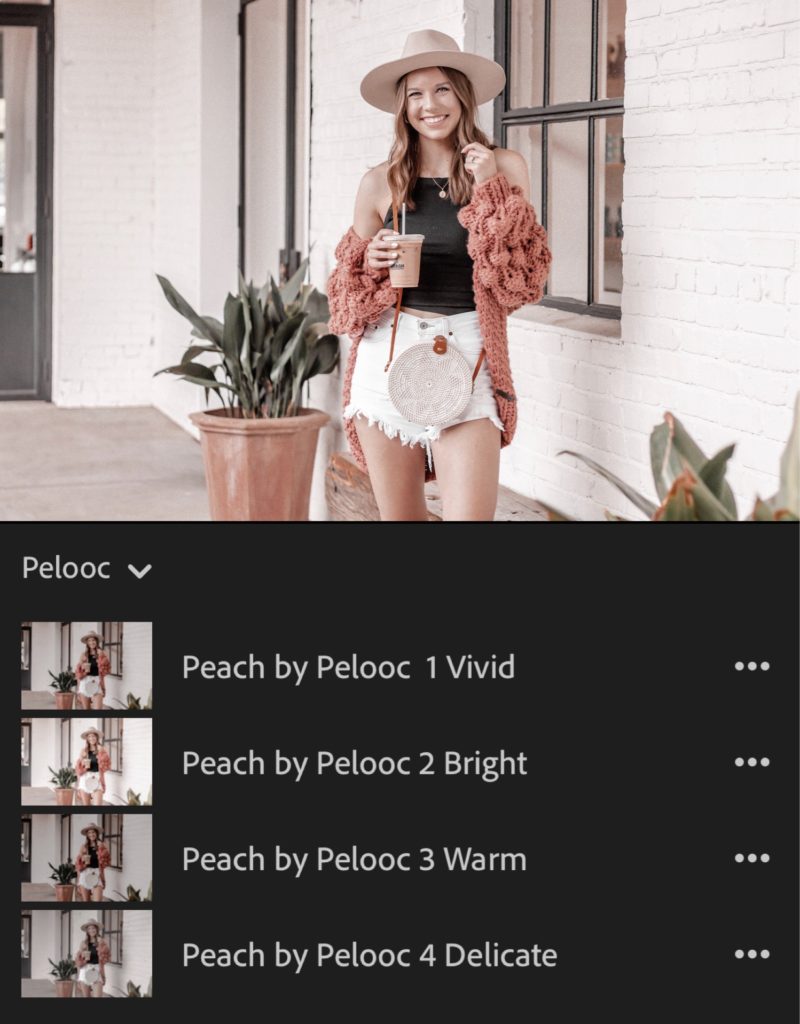
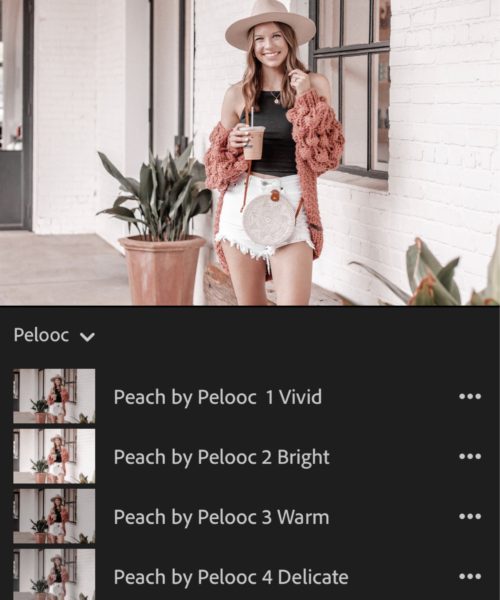
First, you need to find a preset that matches with your style. There are plenty out there, so, to familiarize with this photo editing method, I’d start with a free one. Try, for example, the glam and summery “Peach by Pelooc” preset, that you can download for free here. If you like images with a feminine, elegant flair, and a bright rose aesthetic, you are gonna love this preset.
Now, let me walk you through the necessary steps to set your presets.
- In case you don’t have it yet, install the free Lightroom CC app for Apple, or Android.
- If you are on an Android device, you can directly download the preset files to your mobile. Skip steps 3 and 4. See you at # 5!
- If you are on an iPhone, you need to unzip the files with a zip file opener (I use Unzip).
- Click the preset download link (in the email you received from Pelooc, if you are installing the Peach by Pelooc preset) and select the option – “open in Unzip”.
- Now you can open the Lightroom CC app and create a new album, which you can name as you like.
- Click “add photos” and select “add from files.” Look for the preset files you’ve just saved, called “Peach by Pelooc presets” and proceed with importing them.
- You’ll have 4 photos in your new album. These photos are samples of the presets, embedding the editing settings you can now apply to your own pictures.
- The last step is to go inside each of the 4 photos and click on the 3-dot menu in the top-right corner of the screen. Then, click on “Create preset,” give the preset a name (I called the Pelooc presets “Peach by Pelooc 1 Vivid / 2 Bright / 3 Warm / 4 Delicate”), and then save.
- Now you have the presets available in your Lightroom presets tab, and you can apply them to any of your photos. (You are free to delete the album with the sample photos).
2. HOW TO EDIT YOUR PHOTOS WITH PRESETS
expectations vs. reality.
Let’s be honest here, Lightrooom presets are amazing and sometimes they literally work their magic in one click, but most of the time the outcome of applying a preset can be far from your expectations. This can be very disappointing, especially if you have paid twenty or thirty bucks for the package. But the good news here is that you haven’t wasted your money. You just need to know that presets may require some adjustments and then they’ll work just fine. Why? Because each image is different, and when we edit an image we always start from a different situation. This means that your shot can be more or less exposed, so, if we apply a preset that tends to brighten up the image, it will work well on a dark photo but it may overexpose an image that was already quite bright.
so, how can you adjust a preset and really make it work?
Step one will be finding the right set of presets that resonate with you, and privileges the shades you like, emphasizing your brand mood colors, or your favorite palette, and minimizing the ones that don’t represent you.
For instance, on my personal account @saraavans, I like to post images with warm and earthy tones, with a little moody vibe. Therefore, I like presets that emphasize beige, brown, yellow, pink and burgundy, and tone down blue, green, turquoise, mint, coral and other bright shades. I also like presets that can decrease contrast and add a slightly desaturated look to the photos.

Once you’ve found the presets you love, you can start applying them to your pictures and notice if they work as is or require adjustments.
Let’s see what the most common post-preset-adjustments a photo may need are, through some examples of first-click-fails, that, with just a few simple tweaks can make your preset work.
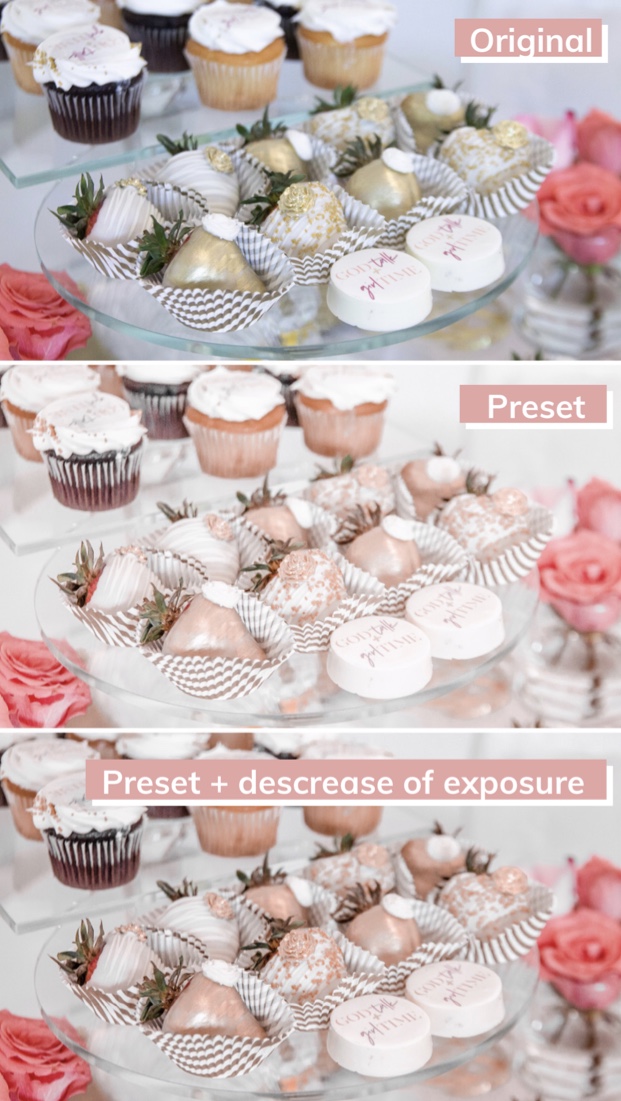
a. Too bright or too dark
This happens when you apply a preset that increases exposure and your photo is already pretty bright; or, on the contrary, when you apply a preset that decreases exposure and your photo is already pretty dark or your subject is in the shadows.
In this case, after applying the preset, go to the “Light” tab and decrease or increase the “exposure” according to the situation. Play around, moving left and right on the exposure bar until you get to a level of luminosity that makes you happy.
b. Too warm
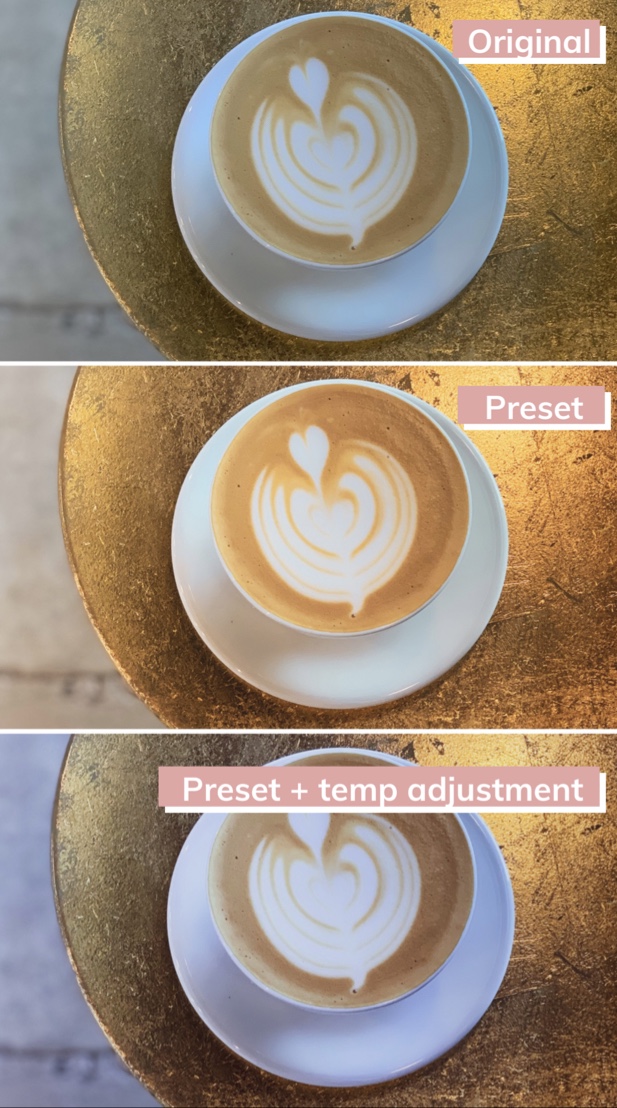
This happens when the preset you are using increases the warmth, but your image already has a prevalence of warm shades like yellow and orange, or was shot under particular light conditions.
To fix this, you’ll need to go into the color tab and adjust the temperature to tone down that yellowish look.
b. Too warm
This happens when the preset you are using increases the warmth, but your image already has a prevalence of warm shades like yellow and orange, or was shot under particular light conditions.
To fix this, you’ll need to go into the color tab and adjust the temperature to tone down that yellowish look.
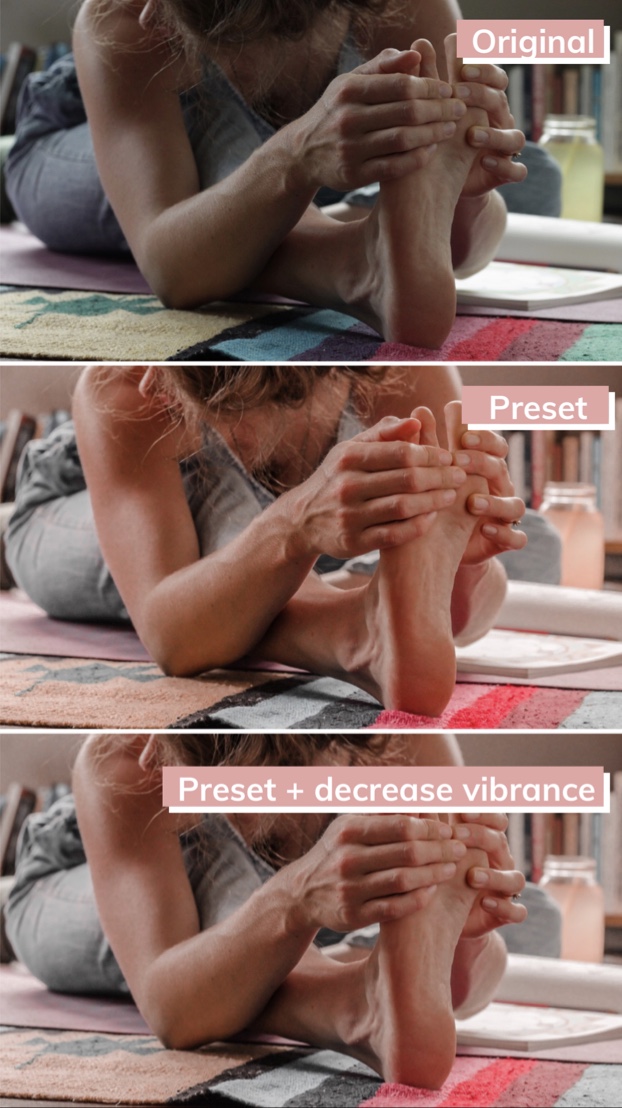
c. Too much color saturation
Some photos may naturally be very colorful, so, with the application of a preset, the intensity of these colors can just be too much.
To avoid this and make your pictures look more balanced, you can go into the color tab and adjust the saturation or the vibrance after applying your preset.
I really hope my little guide to install Lightroom presets on mobile will help you edit your photos with more fun and less frustration. If there is more you’d like to learn about photo editing stay tuned on @pelooccrew for new blog posts issues, or send us your questions by leaving a comment here!



LEAVE A REVIEW